The software package contains the installer file, solution package file and other resource files needed for installation. You can use either the installer (Setup.exe) to install the software automatically or use the STSADM tool to install it manually. You must be the SharePoint Farm Administrator to perform the installation.
Double-click the Setup.exe file to begin the installation and follow the steps provided by the installer. For a more detailed discussion of the installation steps, see Solution Installation Using Setup.exe.
News Solution can be deployed using commands as follow:
1. stsadm -o deploySolution -name "FireArrow.SharePoint.News.2007(2010).wsp" -immediate-url http://qa.test.firearrowsoft.com -force -allowCasPolicies
2. stsadm -o execadmsvcjobs
Note : Please replace the url (http://qa.test.firearrowsoft.com) with your target web application's url.
1. Open Central Administration, select Operations, and select Solution management under the Global Configuration.
2. Select the solution "FireArrow.SharePoint.News.2007(2010).wsp", and then select Deploy Solution from the Solution Properties.
3. Select the appropriate time to deploy the solution and then select the web application the solution will be deployed to.
Please email us at support@firearrowsoft.com .
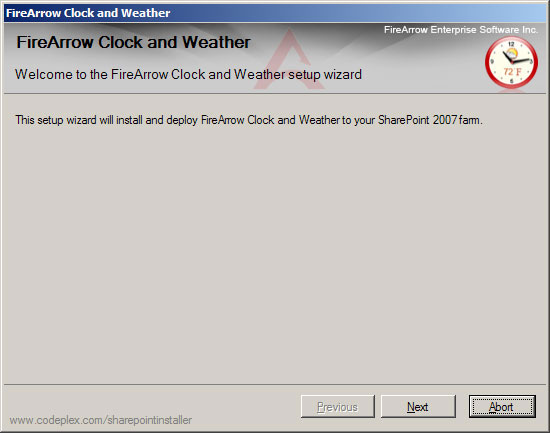
You must be the SharePoint Farm Administrator. Run the setup.exe file, you will see the screen as below, and then click “Next”.
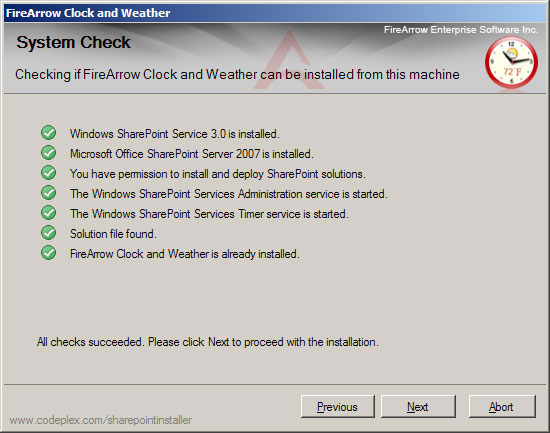
After setup have done with the system check, click the “Next”.
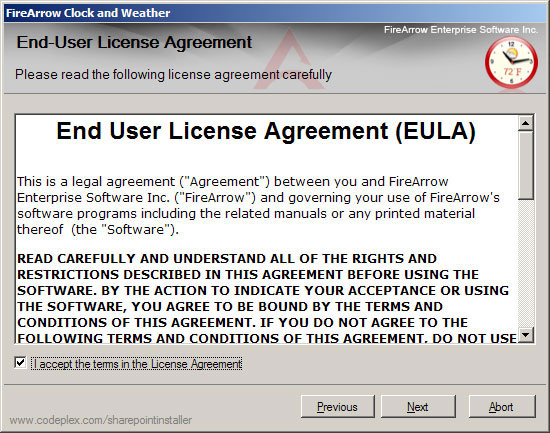
After you have read and accepted the EULA, and then click “Next”.
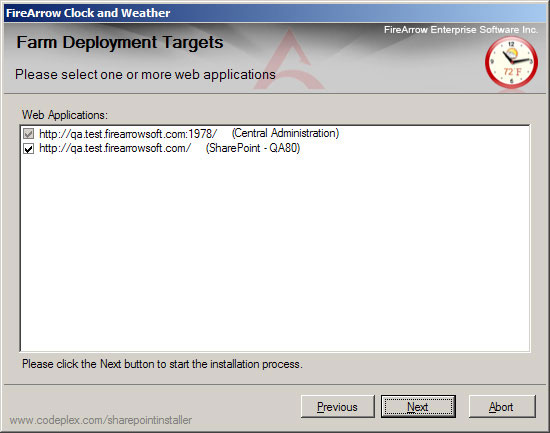
Select target web applications and then click “Next”.
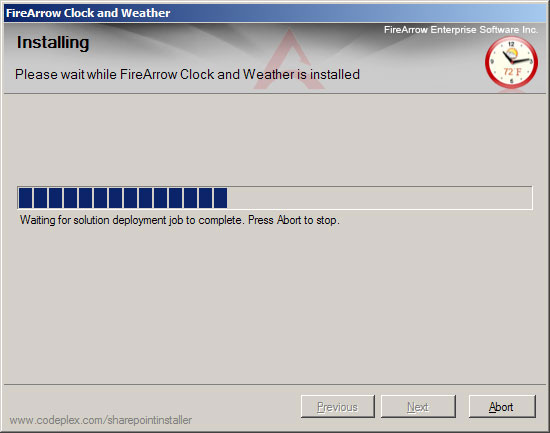
After the web part is completed successfully, and then clicks “Next”.
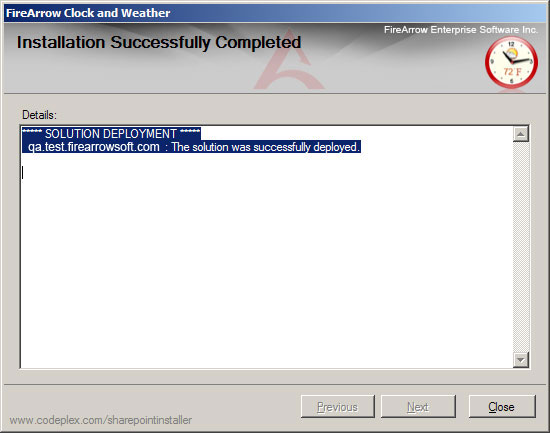
Read the summary, and click “Close”.
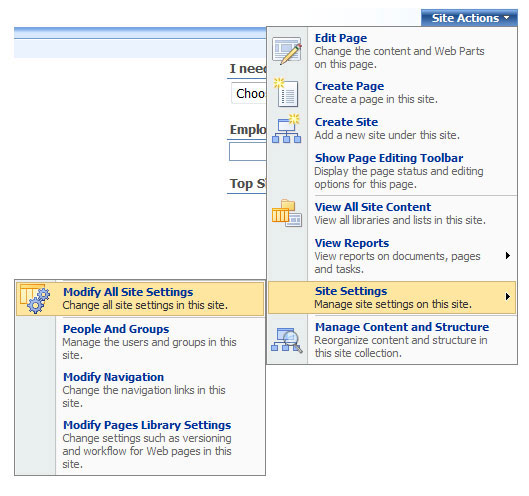
Click “Site Actions”→Site Settings→Modify All Site Settings.
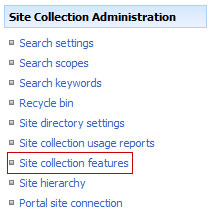
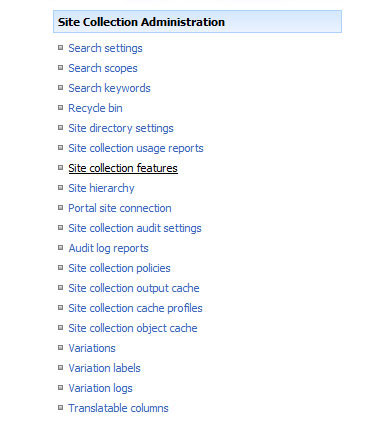
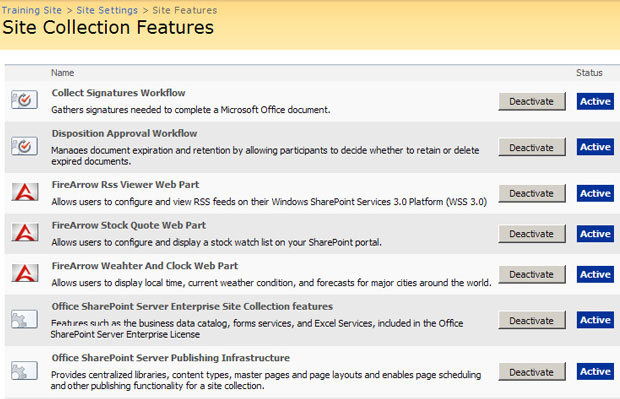
Select “Site collection features”.
Click “Active” Button to active FireArrow product you’d like to active.
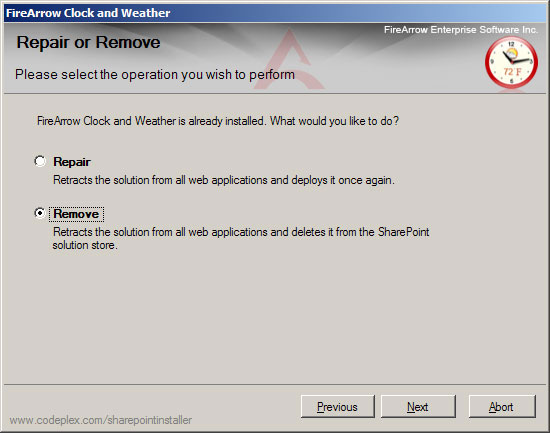
Run the setup.exe, select the Remove radio button in the Repair and Remove, and click “Next”, the web part will be uninstalled.
To update installed FireArrow products, you need to follow below steps:
If you see errors when adding a FireArrow web part (e.g. Weather and Clock web part), please follow below steps.
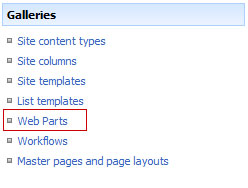
Click "Web Parts".
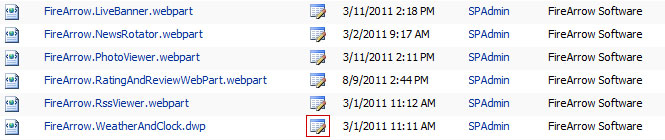
Click "Edit".
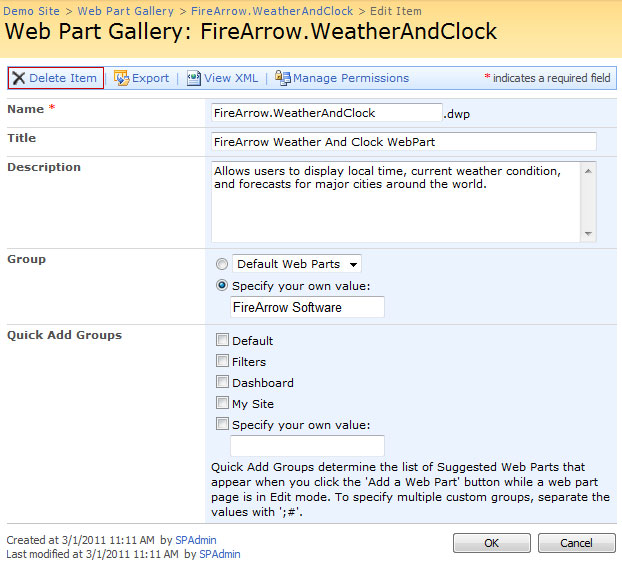
Click "Delete Item".
Go to "Modify All Site Settings".
Deactivate and re-activate the web part. The new web part information will be added.